
Create a tilt-shift Photo Of A Grand
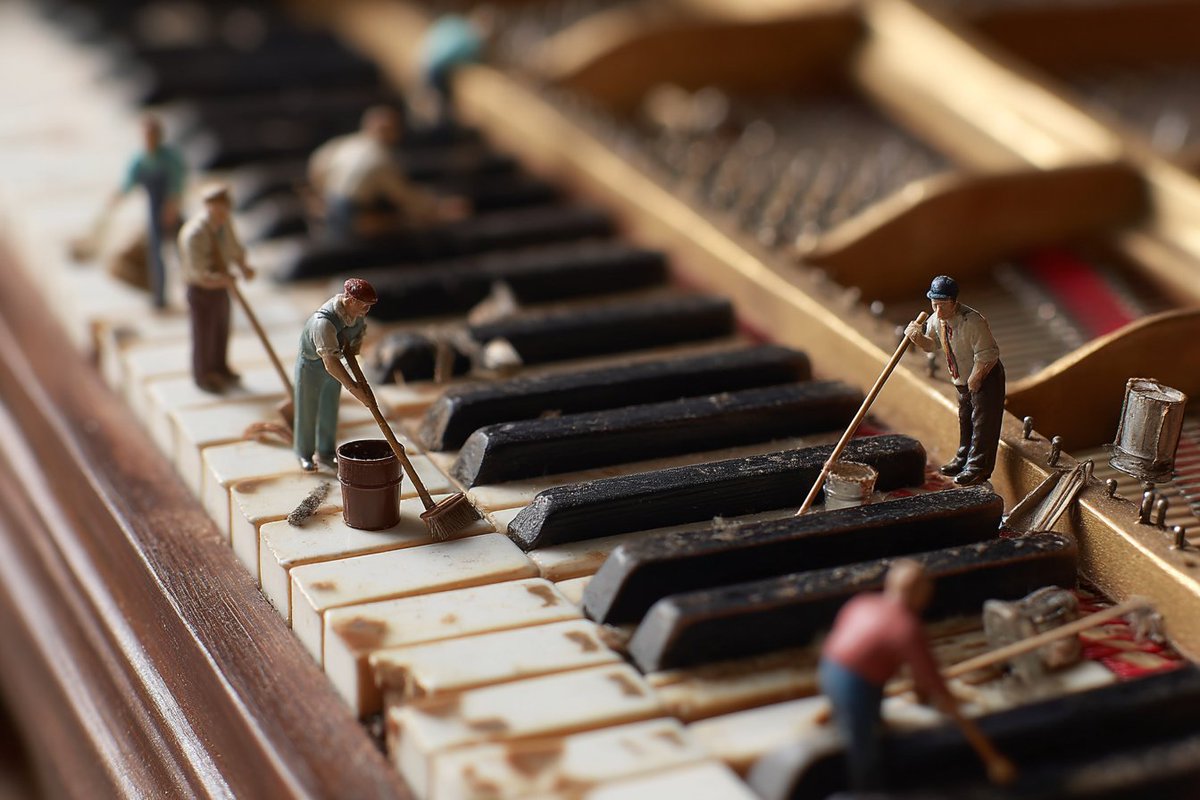
How to tilt-shift photo of a grand piano keyboard, side view from the left looking along the keys to the right, shallow depth of field, tiny human figures...
1
Times used
0
Likes
The Miniature Magic: A Deep Dive into the "Tilt-Shift Photo of a Grand" AI Style
Imagine peering into a world where a majestic grand piano transforms into an intricate, miniature landscape. Ivory and ebony keys stretch out like a vast, polished highway, and tiny figures, no bigger than a thumbnail, go about their business on its surface. This isn't a scene from a fantasy film; it's a world you can create in seconds with Orno's powerful AI image editor. The style, "Create a tilt-shift Photo Of A Grand," unlocks one of the most enchanting effects in photography and puts its creative power right at your fingertips. This guide will explore the magic behind tilt-shift, deconstruct the prompt that brings it to life, and show you how to become the architect of your own tiny, musical worlds.
What Exactly is Tilt-Shift Photography?
Before diving into the AI-powered version, it's helpful to understand the traditional art form. Tilt-shift photography is a creative technique that manipulates perspective and the plane of focus. Photographers typically use special, expensive tilt-shift lenses that allow them to tilt the lens relative to the image sensor. This tilt creates a very narrow band of sharp focus, while rapidly blurring the foreground and background. Our brains interpret this shallow depth of field, especially when viewing a scene from a high angle, as something small and close-up, like a model or a diorama. This optical illusion is often called "miniature faking," and it can turn a bustling cityscape into a toy train set or a forest into a tabletop garden. With Orno's AI, you no longer need complex equipment—just the right sequence of words.
Deconstructing the "Tilt-Shift Photo Of A Grand" AI Prompt
A great AI prompt is like a detailed recipe for a visual masterpiece. Every word serves a purpose, guiding the AI to generate a precise and compelling image. Let's break down this specific style to understand how each component contributes to the stunning final result.
"Create a tilt-shift Photo Of A..."
This is the foundational command. By starting with "tilt-shift photo," you are explicitly telling the AI to replicate the signature characteristics of this photographic style. The AI understands this to mean:
- A very shallow depth of field.
- Selective focus on a specific horizontal band of the image.
- A high-angle perspective, typical of miniature photography.
- Increased color saturation to enhance the "model-like" appearance.
"...Grand piano keyboard..."
The subject of our miniature world is a grand piano keyboard. This is a brilliant choice for several reasons. The repeating pattern of the black and white keys provides strong leading lines, drawing the viewer's eye through the scene. The high contrast and reflective surfaces create a visually dynamic landscape for the tilt-shift effect to play with. It’s a familiar object, and seeing it rendered in a completely unfamiliar scale is what creates the initial sense of wonder and delight.
"...side view from the left looking along the keys to the right..."
Composition is key in any art form, including AI generation. This part of the prompt acts as your virtual director of photography. A "side view" and "looking along the keys" establishes a dramatic, sweeping perspective. This angle maximizes the sense of depth and distance, giving the tilt-shift effect a vast canvas to work on. The shallow depth of field will render the closest keys sharp, while the keys further down the line will blur into a beautiful, soft abstraction, perfectly mimicking the look of a macro shot of a tiny model.
"...shallow depth of field..."
While the term "tilt-shift" already implies this, explicitly adding "shallow depth of field" reinforces the instruction for the AI. It's like telling a chef to "make it spicy" and then adding "and use extra chili." This ensures the AI prioritizes a very narrow plane of focus, which is the single most important technical element for achieving the miniature look. This command helps create a beautiful bokeh (the aesthetic quality of the blur) in the out-of-focus areas, further enhancing the photographic realism of the generated image.
"...tiny human figures..."
This is the narrative magic wand of the prompt. Without the figures, you have a beautiful, abstract image of a piano. With them, you have a story. These tiny people instantly establish a sense of scale, confirming for our brains that we are indeed looking at a massive landscape. Their presence invites questions: Are they performers in a colossal concert hall? Are they maintenance workers polishing the keys? Or are they explorers discovering a strange new world? Adding these figures transforms a static image into a dynamic, living diorama.
Why This AI Style is So Captivating
The "Tilt-Shift Photo Of A Grand" style resonates with creators because it taps into a universal sense of wonder. It blends the elegance of classical music with the charm of miniaturization, creating a unique artistic fusion. The style allows for incredible visual storytelling, turning a simple instrument into a playground for the imagination. It's a testament to how AI can not only replicate complex photographic techniques but also empower users to build fantastical worlds that were previously impossible to capture.
How to Use and Customize This Style in Orno
Bringing this miniature world to life in Orno is incredibly simple.
- Navigate to the Orno AI image generator.
- In the prompt box, type or select the style: "Create a tilt-shift Photo Of A Grand piano keyboard, side view from the left looking along the keys to the right, shallow depth of field, tiny human figures".
- Click the "Generate" button and watch as Orno crafts your unique, miniature masterpiece.
Endless Customization and Experimentation
Think of this prompt as a template for infinite creativity. By changing just a few words, you can generate entirely new scenes. Try these variations:
- Change the Subject: Swap "Grand piano keyboard" with "a vintage library bookshelf," "a bustling city street at night," or "an intricate computer motherboard." - Modify the Figures: Instead of "tiny human figures," try "tiny astronauts exploring," "tiny medieval knights jousting," or "tiny cats playing."
- Adjust the Atmosphere: Add phrases like "in the style of a Wes Anderson film," "dramatic cinematic lighting," "soft, foggy morning," or "vibrant neon glow."
- Define the Action: Give your tiny figures a purpose. "tiny human figures having a picnic" or "tiny construction workers building a bridge between two keys."
Frequently Asked Questions (FAQ)
What is the tilt-shift effect in AI image generation?
In AI image generation, the tilt-shift effect is a style that mimics traditional tilt-shift photography. By using prompts that specify "tilt-shift," "shallow depth of field," and a high-angle view, you can command the AI to create images that make large-scale subjects appear like miniature models or dioramas.
How can I make my AI images look like miniature models?
To make your AI images look like miniatures, use the "tilt-shift" keyword. Also, include terms like "shallow depth of field," "selective focus," and "blurry background." Describing the scene from a "high angle view" or "drone shot" perspective further enhances the effect. Adding "tiny figures" is the final touch to truly sell the illusion of a small-scale model.
Can I use the 'Tilt-Shift Photo Of A Grand' prompt for other objects in Orno?
Absolutely! The prompt is a fantastic template. Simply replace "Grand piano keyboard" with any other subject you can imagine—a guitar, a stack of books, a forest, a dinner plate—to apply the same magical miniature effect to a whole new world of objects.
Do I need a special camera to create a tilt-shift photo?
Traditionally, yes, you would need a specialized and often expensive tilt-shift lens. However, with the power of AI image editors like Orno, you don't need any camera equipment at all. Your creativity and a well-written text prompt are all that's required to achieve this stunning and complex photographic effect.
What are the best keywords for creating a shallow depth of field in AI art?
To get a strong shallow depth of field (blurry background), use specific photographic terms in your prompt. The most effective keywords include "shallow depth of field," "bokeh," "blurry background," "selective focus," "macro photo," and specifying a lens type like "shot on an 85mm f/1.4 lens." The more specific you are, the better Orno can interpret your vision.
Ready to create your own tiny universe? Dive into the Orno AI image editor, use the "Create a tilt-shift Photo Of A Grand" style, and start bringing your miniature worlds to life today!
Use This Prompt
Transform your images with AI
Save this prompt as its own icon for one-tap access.