
Create a smooth
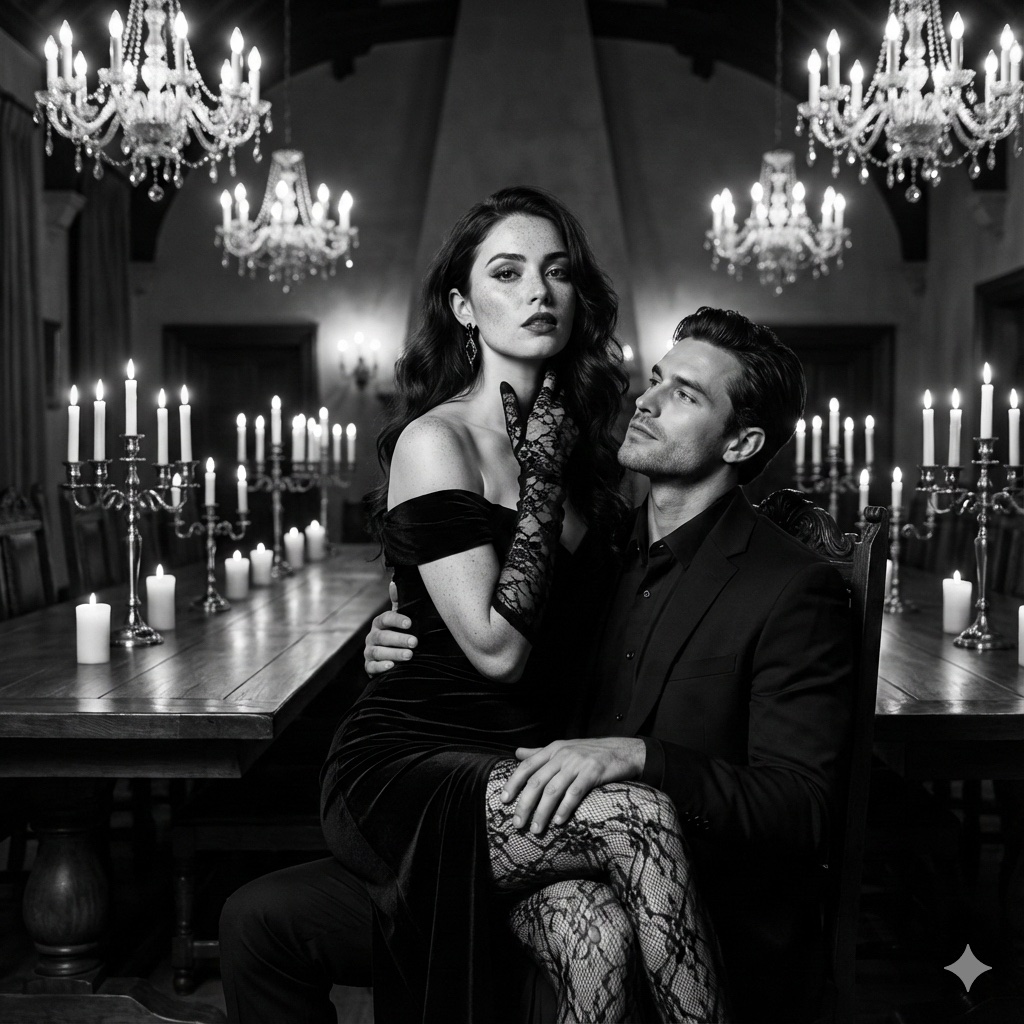
How to smooth, no tattoos, prominent freckles on nose and cheeks (visible in B&W)
0
Times used
0
Likes
The Art of Natural Beauty: A Guide to the "Create a smooth" AI Image Style
In the world of digital art and photography, the pursuit of perfection can sometimes lead to an artificial, overly-processed look. We've all seen images where skin is smoothed to the point of looking like plastic, erasing every unique detail that makes a face interesting. But what if you could achieve a flawless, clean aesthetic while preserving the very essence of natural beauty? Introducing the "Create a smooth" style in Orno's AI Image Editor—a sophisticated prompt designed to generate and refine images with a beautifully natural, clear, and character-rich finish.
This powerful style is more than just a simple filter. It’s an intelligent instruction set for our advanced AI, allowing you to craft stunning portraits that are smooth, free of tattoos, and adorned with charming, prominent freckles that hold their own even in black and white. Whether you're a professional photographer, a digital artist, a content creator, or simply someone who loves experimenting with AI image generation, this guide will explore how the "Create a smooth" style can revolutionize your creative process.
Deconstructing the "Create a smooth" Prompt: The Magic in the Details
The elegance of the "Create a smooth" style lies in its specific, multi-layered instructions. Each component of the prompt tells the Orno AI exactly what to prioritize, resulting in a balanced and breathtakingly realistic image. Let's break down each element to understand its role in the final creation.
"How to smooth": Achieving Flawless, Realistic Skin
This is the foundation of the style. The instruction "How to smooth" goes far beyond a basic blur tool. It commands the AI to perform an intelligent and context-aware retouching process. The AI analyzes the image's texture, lighting, and contours to reduce imperfections like minor blemishes, uneven skin tone, and harsh wrinkles. However, the key is what it *doesn't* do. Unlike crude filters, Orno’s AI preserves essential skin texture, like pores and fine lines, ensuring the final result looks like naturally healthy skin, not a digital mask. This AI-powered skin smoothing is akin to the work of a professional retoucher, providing a clean canvas while maintaining believability and life.
"no tattoos": Crafting a Clean and Timeless Aesthetic
The "no tattoos" command is a powerful tool for creative control. By instructing the AI to remove or avoid generating tattoos, you can instantly alter the mood and context of your image. This feature is invaluable for a variety of applications. You might be aiming for a classic, timeless portrait that won’t be dated by contemporary ink. Perhaps you're a character designer creating a persona with a specific backstory that doesn't include tattoos. Or, you may simply want the focus of the image to be on the subject's facial features, expression, and natural skin. This directive gives artists and editors the freedom to define their subject's appearance with precision, ensuring the final image aligns perfectly with their vision.
"prominent freckles on nose and cheeks": Adding Character and Charm
This is where the "Create a smooth" style truly shines and sets itself apart. While smoothing skin, many basic tools would mistakenly erase freckles, viewing them as imperfections. Orno's AI, guided by this specific prompt, does the exact opposite. It understands that freckles are a desirable feature that adds depth, youthfulness, and a unique sun-kissed charm. The AI intelligently generates or enhances freckles, scattering them realistically across the nose and cheeks—the areas where the sun would naturally kiss the skin. This single instruction transforms a potentially generic portrait into one that is memorable, relatable, and full of personality.
"(visible in B&W)": Ensuring Detail and Definition
This final, parenthetical instruction is a mark of sophisticated prompt engineering. By specifying that the freckles must be "visible in B&W," you're telling the AI to create them with sufficient contrast and definition. In monochrome photography, subtle variations in color are lost, and images rely on tone, light, and shadow. This command ensures the freckles don't fade into a gray smudge when the color is removed. They remain a distinct and impactful feature, showcasing the AI's ability to think like a photographer and plan for different artistic interpretations. It’s a testament to how you can guide the AI to consider not just what it creates, but how that creation will hold up under different visual treatments.
Practical Applications: Who Should Use the "Create a smooth" Style?
The versatility of this AI-powered style makes it an essential tool for a wide range of creative professionals and enthusiasts. Here are just a few ways you can leverage the "Create a smooth" prompt in Orno.
- Professional Portrait Photographers: Elevate your client work by offering a high-end, naturally retouched option. Quickly clean up headshots and portraits while enhancing the subject's unique features, saving hours of manual editing time.
- Digital Artists & Character Designers: Create compelling character concepts from scratch. Generate a base model with a clean, freckled look that you can further develop, ensuring your characters feel authentic and endearing from the very beginning.
- Social Media Influencers & Content Creators: Develop a consistent and polished visual aesthetic for your brand. Use this style to create eye-catching profile pictures and content that looks professional yet approachable and genuine.
- Marketing and Advertising Professionals: Generate unique, royalty-free model imagery for campaigns. Create visuals of relatable, fresh-faced individuals that connect with your audience, without the expense and logistics of a full photoshoot.
- Hobbyists and Creative Explorers: Have fun creating beautiful digital avatars, reimagining old photos, or simply exploring the artistic possibilities of AI. It’s an accessible way to produce professional-quality art with just a few clicks.
Mastering the Style: Tips for Perfecting Your Image in Orno
Getting started with the "Create a smooth" style is incredibly easy, but Orno also provides powerful tools for you to customize and refine the result to match your exact vision.
- Start with a Base: You can apply this style to an existing photograph you upload or use it as part of a text-to-image prompt to generate a new person from your imagination.
- Apply the Style: Simply select "Create a smooth" from Orno’s curated library of styles. The AI will immediately process your request and generate the image based on the prompt's core instructions.
- Fine-Tune and Customize: This is where you can truly make the image your own. Try combining the style with additional keywords in the text prompt. For example, you could add "laughing, red curly hair, golden hour lighting, wearing a denim jacket" to build a more detailed scene around your subject.
- Combine with Other Orno Styles: Don't be afraid to layer! After applying "Create a smooth," you could experiment with another style like "Cinematic Lighting" to add dramatic shadows or "Vintage Film" to give it a nostalgic, grainy texture. This powerful style-mixing capability allows for near-infinite creative outcomes.
Frequently Asked Questions (FAQ)
Can I use the "Create a smooth" style on my own photos?
Absolutely! Orno is a powerful AI photo editor as well as an image generator. You can upload any portrait, apply the "Create a smooth" style, and the AI will intelligently retouch it according to the style's parameters—smoothing skin, removing tattoos, and enhancing or even adding realistic freckles.
Will the AI remove my moles or beauty marks along with blemishes?
Orno's AI is trained on vast datasets to differentiate between temporary imperfections like pimples and permanent features like moles and beauty marks. In most cases, it will preserve them. For added control, you can use advanced features like inpainting or negative prompts (e.g., adding "keep beauty mark on left cheek" to your prompt) to guide the AI with even greater precision.
What if I want freckles but want to keep tattoos in my photo?
The beauty of Orno lies in its customizability. While "Create a smooth" is a preset style, you can always edit the underlying prompt. Simply remove the "no tattoos" part of the instruction, and the AI will focus only on smoothing the skin and adding freckles, leaving existing tattoos untouched.
Does this AI style work well for all skin tones and ethnicities?
Yes. We have designed Orno's AI models to be inclusive and to understand the diverse beauty of human features. The "Create a smooth" style works beautifully across all skin tones, realistically rendering skin texture and freckle patterns that are appropriate and natural-looking for any ethnicity you wish to generate or edit.
How is this different from a standard "smoothing" filter on a social media app?
The difference is immense. A standard filter is a simple overlay that often blurs detail indiscriminately, leading to a flat, fake appearance. The "Create a smooth" style is a complex generative process. It doesn't just blur; it reconstructs the skin texture, intelligently identifies and adds features (freckles), removes specific elements (tattoos), and even considers advanced concepts like how the details will appear in black and white. It's a creative tool, not just a simple effect.
Start Creating Your Perfect Portrait with Orno Today
The "Create a smooth" style is more than a prompt; it's a philosophy. It champions a vision of beauty that is clean and flawless yet deeply authentic and full of character. It empowers creators of all skill levels to produce portraits that are not only visually stunning but also emotionally resonant.
Dive into the future of digital artistry. Whether you're refining a cherished photo or bringing a new character to life from pure imagination, Orno's AI Image Editor provides the tools you need to do it with unparalleled ease and creativity. Try the "Create a smooth" style today and discover the perfect balance between polished perfection and natural charm.
Use This Prompt
Transform your images with AI
Save this prompt as its own icon for one-tap access.