
Create a portrait From A 100% Reference
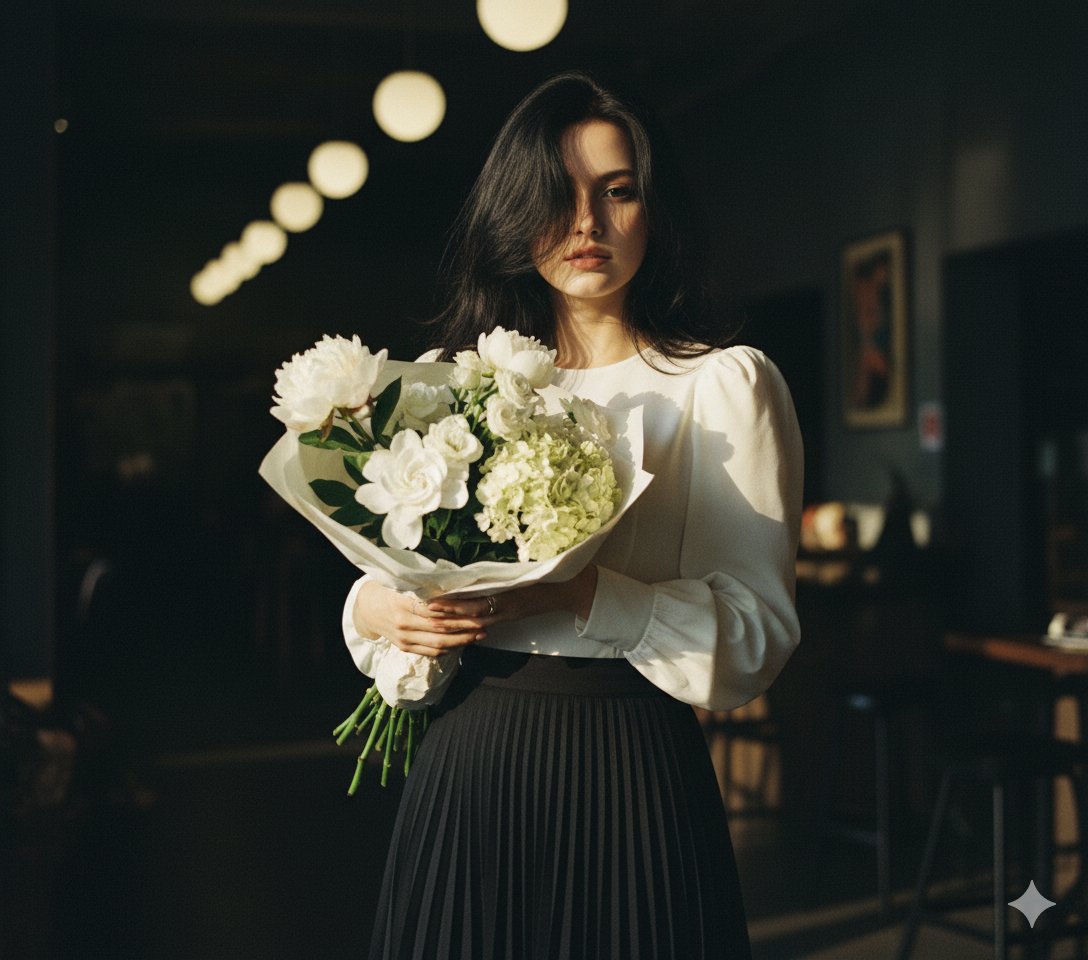
How to portrait From a 100% reference image, it is a close-up of a movie.
0
Times used
0
Likes
Unlocking Cinematic Realism: The Ultimate Guide to AI Portraits from a 100% Reference
Have you ever looked at a photo of yourself, a friend, or a loved one and imagined it as a scene from a blockbuster movie? The dramatic lighting, the intense emotion, the impeccable detail—that cinematic quality that transforms a simple snapshot into a work of art. In the past, achieving this look required professional photographers, expensive equipment, and hours of skilled editing. Today, thanks to the power of artificial intelligence, you can create breathtaking, movie-still portraits directly from your photos. Welcome to the world of the "Create a portrait From A 100% Reference" style, a revolutionary feature within Orno, your go-to AI image editor.
This guide will dive deep into this powerful AI image generation technique. We'll explore how you can leverage your own pictures to create hyper-realistic, emotionally resonant portraits that look like they were pulled straight from the silver screen. Whether you're a digital artist, a social media enthusiast looking for a standout profile picture, or simply curious about the creative potential of AI, you'll learn everything you need to transform your photos into cinematic masterpieces with Orno.
What is the "Cinematic Portrait from a 100% Reference" Style?
This style might sound technical, but the concept is beautifully simple. It’s about combining two powerful AI capabilities: using a source image for high-fidelity guidance and applying a sophisticated artistic style. Let's break down what makes this technique a game-changer for AI portrait generation.
The Power of a "100% Reference" Image
In the realm of AI art, a "reference" or "image prompt" is a picture you provide to the AI to guide its creation. The term "100% reference" signifies that the AI will adhere very closely to the source image. Unlike other styles that might only borrow the colors or general composition, this method focuses on preserving the core likeness and features of the person in your photo. It uses the intricate details of the original face—the unique shape of the eyes, the curve of the smile, the structure of the face—as a foundational blueprint. This is the key to creating an AI portrait that is not just a generic face but a recognizable, stylized version of a specific person.
The Magic of the "Cinematic Close-Up" Aesthetic
The second part of this style is the aesthetic goal: a close-up from a movie. What does that truly mean? A cinematic look is more than just a filter; it's a complex blend of artistic elements that evoke emotion and tell a story. With Orno's AI, you can infuse your portraits with these qualities:
- Dramatic Lighting: Think of the sharp contrast of film noir, the soft glow of a romantic drama's golden hour, or the futuristic neon reflections of a sci-fi thriller. AI can replicate professional lighting setups like Rembrandt lighting, rim lighting, or softbox diffusion.
- Shallow Depth of Field: This is a classic filmmaking technique where the subject is in sharp focus while the background is beautifully blurred (an effect known as 'bokeh'). It draws the viewer's eye directly to the portrait and adds a layer of professional quality.
- Rich Color Grading: Movies use specific color palettes to set the mood. You can instruct the AI to use the popular teal-and-orange grading of modern blockbusters, the desaturated tones of a historical epic, or the vibrant hues of a fantasy film.
- Emotional Depth: Through subtle changes in expression and atmosphere, the AI can enhance the mood of your photo, turning a simple smile into a look of quiet confidence or a neutral gaze into one of pensive introspection.
By merging a high-fidelity reference image with these cinematic elements, Orno’s AI image editor doesn’t just edit your photo; it reimagines it. The result is a stunning, unique piece of digital art that retains the essence of the original person while elevating them to a new level of artistic expression.
A Step-by-Step Guide: Creating Your Cinematic Portrait in Orno
Ready to become the director of your own digital photoshoot? Creating a cinematic AI portrait with Orno is an intuitive and rewarding process. Follow these steps to get started.
Step 1: Choose the Perfect Reference Photo
The quality of your final AI portrait heavily depends on the quality of your input image. A great reference photo acts as a clear set of instructions for the AI. Here’s what to look for:
- Clarity and Focus: Use a photo where the face is sharp and in focus. Avoid blurry or pixelated images.
- Good, Clear Lighting: A photo with even lighting on the face works best as a base. The AI will add its own dramatic lighting, but starting with a clear view of the features is crucial.
- Unobstructed View: Choose a photo where the face is not covered by hands, shadows, or objects. A straightforward, front-on or three-quarter view is ideal.
- High Resolution: The more detail the AI has to work with, the better the result. Use the highest resolution version of the photo you have.
Step 2: Upload Your Image to Orno
Navigating Orno’s AI image editor is designed to be user-friendly. Locate the image-to-image or image prompt functionality. Here, you will upload your chosen reference photo. This tells Orno that the uploaded picture is the primary subject and foundation for the new creation.
Step 3: Crafting the Perfect Text Prompt
This is where your creative direction comes into play. While the image provides the "who," your text prompt provides the "how." The prompt instructs the AI on the specific cinematic style you want to achieve. A detailed prompt leads to a more refined and specific result. Let's build a prompt from the ground up.
Prompting Essentials:
- Core Subject: Start by describing the subject, even though you’ve provided an image. For example, "cinematic close-up portrait of a woman."
- Lighting Details: Be specific about the light. Use terms like "dramatic side lighting," "Rembrandt lighting," "neon reflections in her eyes," or "soft morning sunlight."
- Cinematic Genre/Mood: Guide the overall feel. Add phrases like "film noir aesthetic," "like a still from the movie Blade Runner," "Wes Anderson film style," or "moody and atmospheric."
- Technical Camera/Film Details: For an extra layer of realism, add technical terms. Try "shot on 35mm film," "anamorphic lens flare," "shallow depth of field," "hyperrealistic," "ultra-detailed," or "8k resolution."
Example Prompts for Orno:
Here are a few examples you can adapt. Mix and match elements to create your own unique style!
- For a Sci-Fi Look:
cinematic close-up portrait of a man, inspired by a sci-fi movie, moody blue and purple neon lighting, reflective surfaces, hyper-detailed, 8k, shallow depth of field. - For a Vintage Film Look:
close-up movie still of a woman from a 1960s film, soft focus, shot on Portra 400 film grain, warm golden hour lighting, pensive expression, elegant. - For a Dramatic, Artistic Look:
intense close-up portrait, dramatic Rembrandt lighting with a dark background, chiseled features, hyperrealistic skin texture, powerful gaze, masterpiece.
Step 4: Generate and Refine
Once your image is uploaded and your prompt is written, hit the generate button! Orno's powerful AI will get to work, interpreting your instructions to create a unique portrait. Don't be afraid to experiment. Run the same prompt a few times to see different interpretations. Tweak your keywords—change "neon lighting" to "candlelight," for instance—and see how the mood shifts. This process of refinement is part of the creative fun.
Advanced Tips for Mastering the Cinematic Portrait Style
Once you've got the basics down, you can use these advanced techniques within Orno to gain even more control over your AI-generated art.
Leverage Negative Prompts
Most advanced AI tools, including Orno, feature a "negative prompt" field. This is where you tell the AI what you *don't* want to see in the image. It's incredibly useful for cleaning up results and avoiding common AI artifacts. A good standard negative prompt includes terms like: deformed, ugly, bad anatomy, extra limbs, blurry, grainy, watermark, signature, cartoon, 3d render.
Experiment with Specific Artist and Director Styles
Want to emulate a particular look? Try adding "in the style of" to your prompt. For example, adding "in the style of Annie Leibovitz" can give you a dramatic, painterly feel. Mentioning directors like "in the style of Denis Villeneuve" might produce a more atmospheric and desaturated look, while "in the style of Guillermo del Toro" could add a touch of dark fantasy.
Control the Background
Your prompt can also dictate the environment behind your subject. Even with a shallow depth of field, the background elements contribute to the story. Try adding descriptions like "with a blurred city street at night in the background," "in a dimly lit library," or "against a simple textured studio backdrop." This adds context and completes the cinematic scene.
Your Story, Reimagined: The Orno Advantage
The "Create a portrait From A 100% Reference" style is more than just a feature; it's a new medium for self-expression. It allows you to become the artist, the director, and the visionary, all with a few clicks. You can create professional-looking AI headshots for your career profile, design unique avatars for your online presence, or turn cherished family photos into timeless works of art to be treasured forever.
Orno provides the most intuitive and powerful platform to bring this vision to life. With its advanced AI model trained on cinematic aesthetics and its precise control over reference images, your creative potential is truly limitless. Stop settling for basic filters and start creating unforgettable, story-driven portraits.
Ready to transform your photos into cinematic art? Try Orno's AI image editor today and discover the future of digital portraiture!
Frequently Asked Questions
Q: Will the AI portrait look exactly like my reference photo?
The portrait will be a creative interpretation, not a direct copy. The beauty of this AI style is that it maintains a very strong, recognizable likeness from your reference photo while completely transforming the artistic style, lighting, and mood. It’s the perfect balance between familiarity and artistic reinvention.
Q: What kind of photos work best as a reference?
For best results, use a high-resolution photo where the subject's face is clearly visible, well-lit, and in sharp focus. A simple, uncluttered background is helpful but not essential, as the AI will be generating a new background based on your prompt.
Q: Can I use this style to create professional AI headshots?
Absolutely. This is one of the most popular uses for this technique. By using a good reference photo of yourself and a specific prompt, you can generate incredibly high-quality headshots. For a professional look, try a prompt like: professional corporate headshot, close-up portrait of a woman, soft studio lighting, smiling confidently, blurred office background, hyperrealistic.
Q: Is it difficult to write good AI art prompts?
Not at all! It's a skill that's easy to begin and incredibly fun to master. Start with the examples in this article and gradually change one or two keywords at a time to see how they affect the outcome. The more you experiment, the more you will develop your own unique prompting style. Orno is designed to make this process of discovery both simple and powerful.
Q: How is Orno different from other AI image generators for this style?
Orno is optimized for realism and artistic control. Our AI model excels at interpreting the nuances of a reference photo, ensuring a high degree of likeness while masterfully applying complex styles. With a user-friendly interface and advanced features tailored for cinematic and portrait generation, Orno provides a superior, streamlined experience for creating stunning AI portraits from your photos.
Use This Prompt
Transform your images with AI
Save this prompt as its own icon for one-tap access.