
Create a photorealistic 2
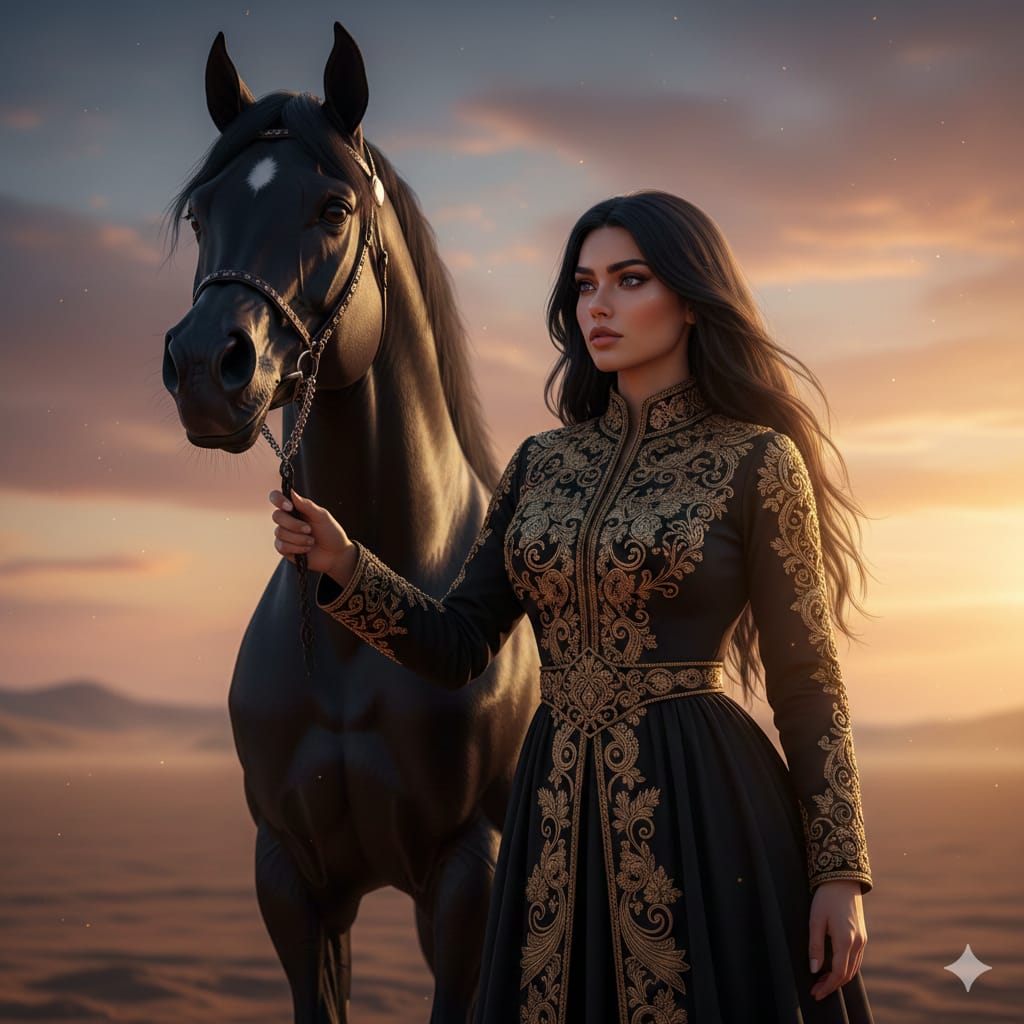
How to a photorealistic, highly detailed, cinematic portrait of an **ethereal young woman** (around 25 years old) with a **regal expression and intensely...
0
Times used
0
Likes
Unlocking Digital Artistry: A Deep Dive into the "Create a photorealistic 2" AI Style
In the burgeoning world of AI image generation, the quest for true realism is the ultimate frontier. Artists, designers, and creators are no longer just asking an AI to create an image; they are directing a digital photoshoot, commanding light, emotion, and texture with the power of words. Among the most evocative and powerful styles emerging in this landscape is the one we call "Create a photorealistic 2". This isn't just a command; it's an incantation for summoning breathtakingly lifelike portraits that blur the line between digital creation and reality.
This style, centered around the prompt "How to create a photorealistic, highly detailed, cinematic portrait of an ethereal young woman...", is a masterclass in AI art direction. It’s a favorite among Orno users for its ability to produce stunning, gallery-worthy images with incredible consistency. In this comprehensive guide, we will deconstruct every element of this phenomenal style, explore the art of prompt engineering, and show you how to leverage Orno's powerful AI image editor to create your own cinematic masterpieces.
What is the "Create a photorealistic 2" Style?
At its core, "Create a photorealistic 2" is a specific recipe for generating an image with a distinct mood and aesthetic. It combines several key concepts that guide the AI to produce results that are not just realistic, but also deeply artistic and emotionally resonant. Let's break down the foundational elements of its descriptive prompt.
- Photorealistic & Highly Detailed: This is the technical cornerstone. "Photorealistic" instructs the AI to mimic the physics of a real camera lens, paying close attention to light, shadow, depth of field, and focus. "Highly detailed" pushes the AI further, demanding intricate rendering of features like individual strands of hair, the texture of skin (including pores and subtle freckles), the weave of fabric, and the delicate catchlights in the eyes. The goal is to create an image that could pass for a high-resolution photograph.
- Cinematic Portrait: This element adds the layer of artistry and storytelling. A "cinematic" image isn't just a snapshot; it's a frame from a movie. This keyword influences the AI to use dramatic lighting (like Rembrandt lighting or soft rim lighting), thoughtful composition, and a color grade that evokes a specific mood—be it mysterious, romantic, or epic.
- Ethereal Young Woman: This is the soul of the portrait. "Ethereal" is a powerful adjective that suggests an otherworldly, delicate, and almost divine quality. It guides the AI towards softer features, graceful poses, and an atmosphere of serene beauty. Specifying "young woman" (around 25 years old) provides a clear and consistent subject for the AI to focus its creative energy on.
- Regal Expression and Intense Gaze: This is the emotional anchor. "Regal expression" prevents a bland, neutral face, instead calling for an look of poise, confidence, and quiet strength. The "intense gaze" is crucial, directing the AI to create eyes that connect with the viewer, holding their attention and conveying a sense of depth and inner life.
How to Use and Customize the "Create a photorealistic 2" Prompt in Orno
The beauty of this style is that it serves as a fantastic starting point. With Orno's intuitive AI image generator, you can use the base prompt as-is or customize it to bring your unique vision to life. Here’s a simple guide to get you started:
- Start with the Base: In the Orno prompt box, simply type or select the "Create a photorealistic 2" style. The AI will know exactly what to do, generating a stunning portrait based on the core principles we've discussed.
- Modify the Subject: While the style defaults to an "ethereal young woman," you have complete creative control. You can change ethnicity, hair color, or even the subject entirely. Try "a rugged man with a thoughtful expression" or "an elegant elderly woman with kind eyes" to see how the cinematic and photorealistic qualities adapt.
- Define the Setting: An empty background is fine, but a defined setting enhances the story. Add details like "sitting in a dimly lit, ancient library," "standing in a misty forest at sunrise," or "against a backdrop of futuristic city lights with bokeh."
- Direct the Wardrobe: The clothing can say a lot about your character. Be specific. Instead of just "clothes," try "wearing an intricate black lace gown," "a simple white linen shirt," or "adorned with delicate silver jewelry."
- Experiment with Mood: Change the entire feel of the image by tweaking the emotional keywords. Swap "regal expression" for "a melancholic expression," "a joyful, gentle smile," or "a look of fierce determination."
Deconstructing the Perfect Prompt for Cinematic Portraits
To truly master this AI image generation style, you need to think like a photographer, a film director, and a casting agent all at once. Your prompt is your creative brief. Here’s how to refine each component for spectacular results.
The Subject: Crafting Your Ethereal Muse
The person in your portrait is the focal point. The more detail you provide, the closer the AI will get to your vision. Think about using a combination of descriptive words to build a compelling character. Combine physical attributes with personality traits.
- Physical Descriptors: "long, flowing auburn hair," "piercing green eyes," "a constellation of faint freckles across her nose," "porcelain skin."
- Ethereal Keywords: "luminous," "serene," "graceful," "delicate," "otherworldly," "glowing." _
- Action/Pose: "gently touching a flower," "looking over her shoulder," "a single tear rolling down her cheek." _
The Camera & Lighting: Achieving Hyper-Realism
This is a pro-level technique that can dramatically elevate your results. By including technical photography terms in your prompt, you can guide the AI to replicate the look of professional camera work. This is where Orno's advanced model truly shines, as it understands the nuance of these commands.
- Camera and Lens: Mentioning specific gear can influence the final look. Try adding "shot on a Sony A7R IV, 85mm f/1.4 lens." The 85mm lens is a classic for portraits, creating beautiful background compression and bokeh.
- Aperture Control: Use f-stops to control depth of field. "f/1.8" will give you a very blurry, creamy background (bokeh), making your subject pop. "f/8" will keep more of the background in focus.
- Lighting is Everything: Be a virtual gaffer! Specify your light source. Use terms like "soft window light," "dramatic side lighting," "golden hour glow," "cinematic rim light," or "moody, low-key lighting."
The Ambiance: Setting a Cinematic Scene
The environment and overall color palette set the stage and complete the story. A well-described scene turns a simple portrait into a captivating narrative.
- Backgrounds: "opulent baroque throne room," "enchanted forest with glowing mushrooms," "rain-streaked neon city street at night," "a minimalist studio with a grey backdrop."
- Color Palette: Guide the color grading of the image. "warm, golden tones," "cool, desaturated blue and grey palette," "vibrant, high-contrast colors," "monochromatic black and white."
- Atmospheric Effects: Add weather and other elements to enhance the mood. "gentle fog," "falling snow," "dust motes dancing in a sunbeam," "subtle lens flare."
Why Orno is the Best AI Image Editor for Photorealistic Portraits
While many tools can generate images, creating consistently high-quality, photorealistic portraits requires a sophisticated AI model and a user-friendly platform. Orno is specifically engineered to excel in this domain.
- Advanced AI Model: Orno's generative engine has been fine-tuned on vast datasets of high-resolution photography. It has a deep understanding of human anatomy, light physics, and cinematic aesthetics, which minimizes common AI errors and maximizes realism.
- Prompt Interpretation: Our AI is exceptionally skilled at interpreting the nuanced, artistic language used in prompts like "Create a photorealistic 2." It understands the difference between "regal" and "haughty," or "ethereal" and "ghostly," delivering results that are true to your intent.
- Post-Generation Tools: Your creative process doesn't end with generation. Orno is a full-featured AI image editor. Once you have your portrait, you can use our built-in tools to upscale the image to a stunning resolution, make precise color corrections, remove unwanted artifacts, or add finishing touches.
- Speed and Simplicity: We believe powerful technology should be accessible. Orno's interface is clean and intuitive, allowing you to go from idea to incredible image in seconds, without a steep learning curve.
Frequently Asked Questions (FAQ)
Can I use the "Create a photorealistic 2" style for male subjects?
Absolutely! The principles of photorealism, cinematic lighting, and detailed features are universal. Simply change the subject in your prompt. For example: "A cinematic, highly detailed portrait of a ruggedly handsome man (around 35 years old) with a pensive expression and intense blue eyes, soft window light."
How can I make my AI portraits more unique and less "generic"?
The key is specificity. Avoid generic terms. Instead of "a woman," describe "a woman with windswept silver hair and a knowing smile." Add unique details, like "a small, intricate tattoo on her wrist" or "wearing antique silver earrings." The more unique details you add, the more unique your result will be.
Does using camera settings in my prompt really work?
Yes, it makes a significant difference. AI models like Orno's are trained on images that have metadata, including camera and lens information. By providing these details, you are essentially telling the AI to find and replicate the aesthetic qualities associated with that specific equipment, leading to more professional and realistic results.
What's the difference between "photorealistic" and "hyperrealistic" in AI art?
While often used interchangeably, there's a subtle distinction. "Photorealistic" aims to create an image that looks like a real photograph. "Hyperrealistic" often pushes beyond reality, exaggerating details like skin pores or reflections to a level that is almost surreal in its clarity, similar to the hyperrealism art movement.
How can I avoid common AI artifacts like strange hands or eyes?
This is a common challenge in AI image generation. Orno's model is continuously improving to reduce these issues. However, if you encounter them, try re-generating the image or slightly tweaking the prompt. You can also add to a "negative prompt" (a feature for excluding things) terms like "deformed hands, extra fingers, poorly drawn eyes" to guide the AI away from those common pitfalls.
The "Create a photorealistic 2" style is more than a prompt—it's a portal to limitless creativity. It provides a solid, artistic foundation upon which you can build countless unique and breathtaking characters and scenes. We invite you to explore this style in the Orno AI image editor. Experiment, customize, and push the boundaries of your imagination. Create the face of a character from your novel, visualize a historical figure, or simply bring a person of stunning, ethereal beauty to life. Your next masterpiece is just a few words away.
Use This Prompt
Transform your images with AI
Save this prompt as its own icon for one-tap access.