
Create a full Body Shot
How to (full body shot, wide angle view:1.
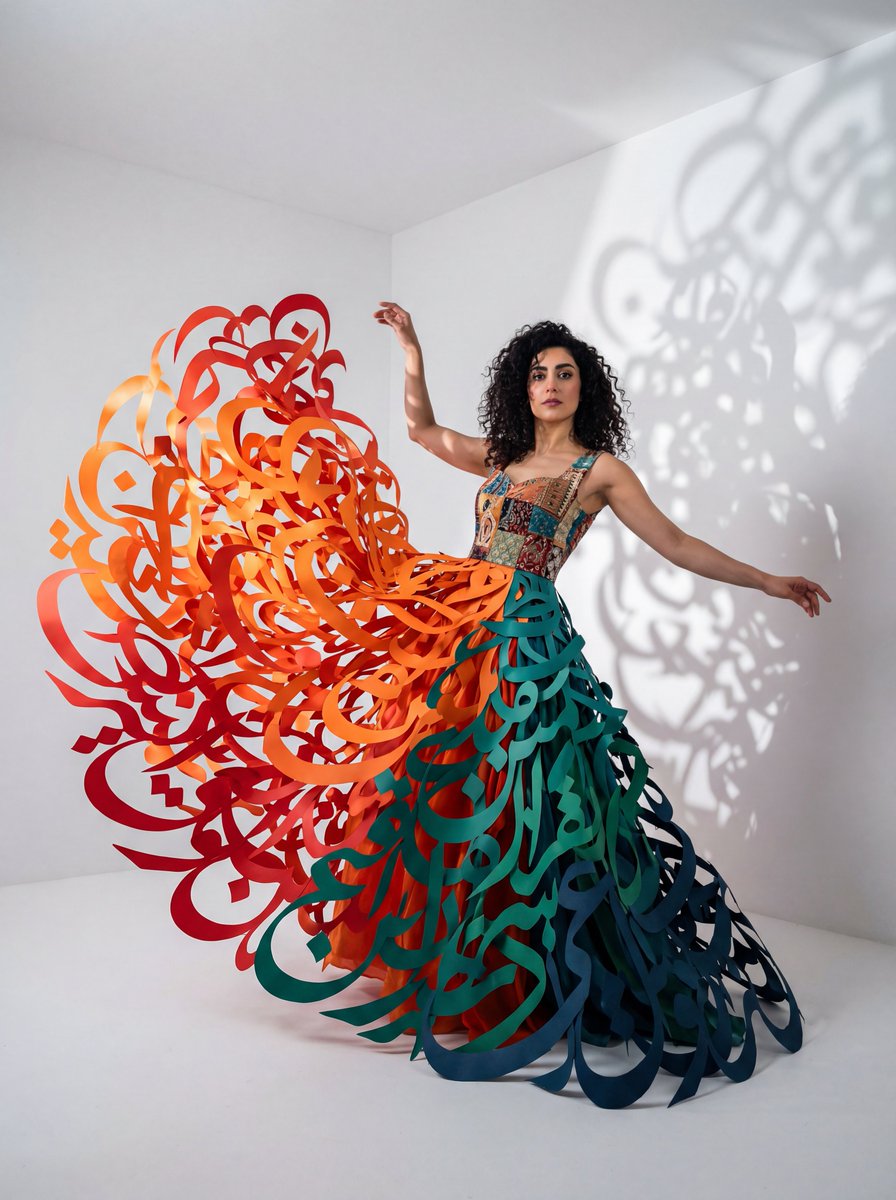
0
Times used
0
Likes
Mastering the Frame: Your Ultimate Guide to Creating Perfect AI Full Body Shots
In the expansive universe of AI image generation, there's a common frustration that creators often face: the dreaded crop. You've crafted the perfect prompt for a magnificent fantasy hero, a chic fashion model, or a futuristic cyborg, only for the AI to deliver a stunning portrait… that cuts off at the waist. Getting a complete, head-to-toe "full body shot" can feel like a game of chance. But what if you could command the AI to capture the entire picture, every single time? With Orno's "Create a full Body Shot" style, you can. This guide will delve deep into the art and science of generating flawless full-body images, transforming your creative visions into complete, compelling visuals.
Our specialized style is built around a powerful prompt structure: (full body shot, wide angle view:1.. This isn't just a random string of words; it's a precise instruction designed to overcome the inherent biases of AI models and give you total control over your composition. Let's explore how to use this tool to unlock a new level of character design and artistic expression.
The Common Challenge: Why AI Struggles with Full Body Images
Before we dive into the solution, it's helpful to understand the problem. Why do text-to-image models so often default to portraits or mid-shots? The answer lies in their training data. AI models like Stable Diffusion are trained on billions of images scraped from the internet. A vast majority of these images, especially those featuring people, are portraits, headshots, and selfies. The AI learns from this data, developing a bias towards focusing on faces and upper torsos.
This leads to common issues for creators seeking full-view images:
- Unwanted Cropping: The most frequent problem is the AI simply cutting off the image at the shins, knees, or waist, completely missing the feet and legs.
- Anatomical Distortions: When forced to generate a full body without proper guidance, AIs can struggle with proportions, leading to unnaturally long limbs, misshapen feet, or other anatomical inconsistencies.
- Awkward Posing: Without a clear sense of a full-figure composition, the AI might generate static or strange poses that don't look natural within a frame.
Overcoming this requires more than just adding "full body" to your prompt. It requires a more intelligent, structured command that guides the AI’s ‘virtual camera’—which is exactly what Orno's style provides.
Unlocking Head-to-Toe Creativity with Orno's "Create a full Body Shot" Style
The "Create a full Body Shot" style in Orno isn't just a filter; it's a sophisticated prompt enhancer that injects a proven formula for success into your creation. Let's break down its core components: (full body shot, wide angle view:1..
The Power of "full body shot"
This is the foundational command. By explicitly stating "full body shot," you are giving the AI its primary objective. It’s a direct, unambiguous instruction that immediately shifts the model's focus from a portrait to a complete figure. While it’s the most crucial part of the prompt, on its own, it can sometimes be ignored by the AI's portrait bias. That's where the next element comes in.
Why "wide angle view" is a Game-Changer
This is the secret sauce. Think like a photographer. If you want to capture a person from head to toe, along with some of their environment, you wouldn't use a zoom lens. You'd step back or use a wider lens. By adding "wide angle view" to the prompt, you are telling the AI to simulate this exact photographic technique. It encourages the model to 'zoom out,' creating more space within the frame and making it far more likely to render the entire subject, from their hair to the soles of their shoes. This simple addition drastically reduces the chances of unwanted cropping and results in a more dynamic, well-composed image.
Understanding Prompt Weighting: The ":1." Syntax
The numbers and symbols in AI prompts aren't just for show. The syntax (text:1.2) is used to increase the "weight" or importance of a specific term. While our style uses a neutral weight of :1., its inclusion in this parenthesis structure helps to group and emphasize the "full body shot, wide angle view" command as a single, high-priority concept. This ensures the AI understands that this compositional instruction is just as important as the subject you're describing. With Orno, you don't need to memorize this syntax; you just select the style, and we handle the expert-level prompt engineering for you.
A Step-by-Step Guide to Using the "Create a full Body Shot" Style in Orno
Ready to create stunning, complete characters? Orno's intuitive interface makes it easy. Follow these simple steps to bring your full-body visions to life.
- Navigate to the Orno AI Image Editor: Open our powerful and easy-to-use text-to-image generator.
- Select the Style: Browse our curated library of styles and click on "Create a full Body Shot." This will automatically apply the optimized prompt structure to your generation.
- Describe Your Subject: This is where your creativity shines. Write a detailed description of the character you want to create. For example: "A female cyberpunk detective in a long trench coat, standing on a rainy, neon-lit city street at night."
- Choose the Right Aspect Ratio: This is a critical step! For full body shots, you need vertical space. We highly recommend using a portrait aspect ratio like 2:3 or 9:16. A landscape (16:9) or square (1:1) ratio will work against your goal.
- Refine with Negative Prompts (Optional): To further improve your results, use the negative prompt field to tell the AI what to avoid. A good starting list would be: "cropped, missing feet, missing legs, ugly, disfigured, bad anatomy, blurry, worst quality."
- Generate and Iterate: Click the "Generate" button! In seconds, Orno will produce several options. Don't love the first result? Tweak your prompt, try a different pose, or generate again to explore new variations.
Advanced Tips for Perfect Full Body AI Generations
Once you've mastered the basics, you can use these advanced techniques to gain even more control over your full-body creations.
Combine with Other Styles and Descriptors
The "Create a full Body Shot" style is a foundation, not a limitation. You can add other stylistic keywords to your prompt to achieve unique aesthetics. Try prompts like:
- "Cinematic full body shot of an astronaut on a barren red planet."
- "Photorealistic, fashion magazine full body shot of a model in a haute couture gown."
- "Anime style, dynamic angle, full body shot of a samurai warrior drawing his katana."
The Importance of Action and Poses
A static character can be boring. Bring your subject to life by describing their pose or action. This gives the AI more information to work with and results in more engaging imagery. Instead of "a woman," try:
- "A woman dancing in a field of flowers."
- "A man confidently leaning against a brick wall."
- "A superhero crouched on a rooftop, ready to leap."
Detail the Environment
The "wide angle view" command invites the environment into your shot. Use this to your advantage! A detailed background setting not only adds context and story but also helps ground your character in the scene, improving the overall realism and composition.
Who Needs Full Body Shots? Use Cases and Inspiration
The ability to reliably generate full-body images is a game-changer for a wide range of creators and professionals. Here are just a few applications:
Character Designers & Concept Artists
Quickly generate full character reference sheets for video games, animations, and films. Visualize costumes, equipment, and proportions in seconds, accelerating the ideation process.
Fashion Designers & Stylists
Create digital lookbooks, visualize complete outfits from head to toe, and experiment with avant-garde fashion concepts without the need for a physical photoshoot.
Writers & Role-Players
Finally, create a true representation of your original characters (OCs) for Dungeons & Dragons, novels, or online forums. See your characters exactly as you imagine them.
Marketers & Social Media Managers
Design unique brand mascots, create imagery for storytelling campaigns, or even generate full-body shots of virtual influencers for social media engagement.
Why Orno is Your Best AI Full Body Shot Generator
While the principles of prompt engineering can be applied across different platforms, Orno provides a streamlined and superior experience for creating full-body images. Here’s why:
- Optimized, One-Click Styles: We've done the hard work of testing and refining prompts so you don't have to. Our "Create a full Body Shot" style is a proven solution that delivers consistent, high-quality results with a single click.
- Intuitive User Interface: Orno is designed for both beginners and experts. Features like easy aspect ratio selection and dedicated negative prompt fields make it simple to apply advanced techniques without a steep learning curve.
- High-Quality Image Models: Our AI models are fine-tuned to excel at generating detailed human figures and complex compositions, leading to better anatomy, fewer artifacts, and more aesthetically pleasing results.
- Speed and Efficiency: Your creativity shouldn't have to wait. Orno delivers multiple high-resolution images in seconds, allowing you to iterate on your ideas faster than ever before.
Frequently Asked Questions (FAQ)
Why does my AI image keep cutting off the feet?
This is typically due to the AI model's training data, which is heavily biased towards portraits and upper-body photos. Orno’s "Create a full Body Shot" style directly combats this by using a combination of the "full body shot" and "wide angle view" commands, instructing the AI to 'zoom out' and capture the entire figure.
What is the best aspect ratio for a full body shot?
For best results, always use a portrait (vertical) aspect ratio. We strongly recommend 2:3 or 9:16. These formats provide the necessary vertical space for the AI to render a character from head to toe without feeling cramped.
Can I create a full body shot of an anime character?
Absolutely! The "Create a full Body Shot" style works with any aesthetic. Simply add your desired artistic style to the main prompt. For example: "Anime style full body shot of a magical girl with pink hair" or "Ghibli aesthetic, full body shot of a boy in a meadow."
How do I get a more dynamic pose in my full body shot?
Be descriptive and use action verbs in your prompt. Instead of a passive description like "a knight standing," try an active one like "a knight lunging forward with a sword," "a knight kneeling in prayer," or "a knight raising a triumphant fist." The more specific you are about the action, the more dynamic the resulting pose will be.
Is the "Create a full Body Shot" style free to use in Orno?
You can start creating incredible full-body images right away with Orno! This style, along with many others, is available to all users. Check our pricing page for more details on our free trials and affordable subscription plans that unlock the full power of our AI image editor.
Use This Prompt
Transform your images with AI
Save this prompt as its own icon for one-tap access.