
Create a contrast
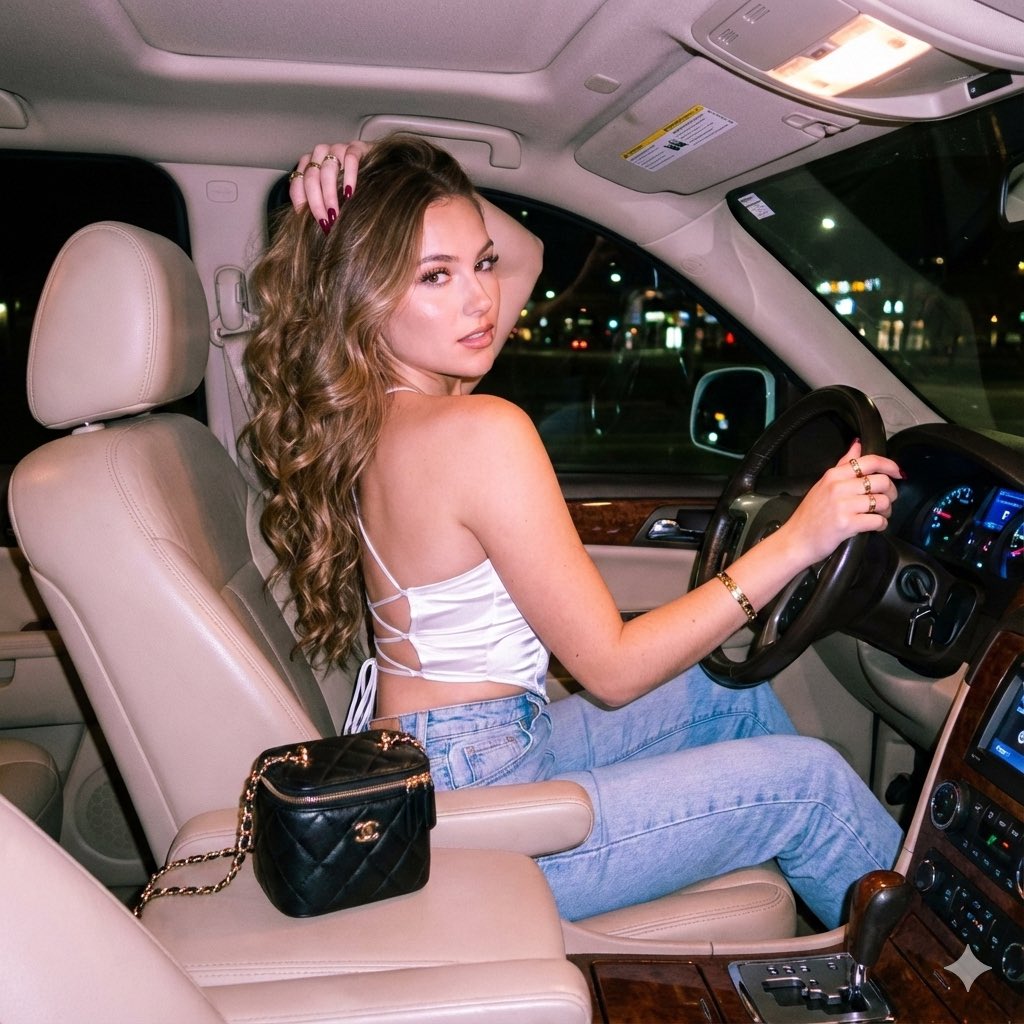
How to high contrast, pronounced flash shadows, realistic cinematic lighting
0
Times used
0
Likes
Mastering Light and Shadow: A Deep Dive into Orno’s "Create a Contrast" AI Style
In the world of visual arts, from the silver screen to the pages of a fashion magazine, few elements are as powerful as contrast. It’s the dramatic play of light against dark, the sharp edge of a shadow, the visual tension that pulls a viewer in and tells a story without a single word. Now, you can harness this cinematic power in your own digital creations with Orno’s revolutionary AI image generation style: Create a Contrast. This isn't just about making your brights brighter and your darks darker; it’s a sophisticated tool designed to mimic high-end photography, complete with pronounced flash shadows and realistic, cinematic lighting. Let’s illuminate the details of this incredible style and discover how you can use it to transform your text prompts into breathtaking visual narratives.
What is the "Create a Contrast" AI Image Style?
At its core, the "Create a Contrast" style is a finely-tuned algorithm within the Orno AI image editor that interprets your text prompts through a specific artistic lens. It’s built on three foundational pillars: high contrast, pronounced flash shadows, and realistic cinematic lighting. When you select this style, you’re telling Orno’s AI to think like a professional photographer or a director of photography, focusing on creating images with depth, drama, and a powerful mood.
The Anatomy of the Style:
- High Contrast: This is the style's backbone. It creates a stark difference between the lightest and darkest areas of the image. This technique eliminates muddy mid-tones, making the subject pop and giving the entire composition a bold, graphic quality. Think of the iconic black and white portraits of the Golden Age of Hollywood or the edgy look of modern thrillers.
- Pronounced Flash Shadows: Unlike soft, diffused lighting, this style emulates the effect of a direct, hard light source, like an on-camera flash. This results in crisp, well-defined shadows with sharp edges. These "flash shadows" are not just empty darkness; they carve out the subject's features, add texture to surfaces, and inject a sense of raw, unfiltered reality into the scene.
- Realistic Cinematic Lighting: This is where the magic truly happens. Orno’s AI doesn’t just apply a simple filter. It understands the principles of cinematic lighting to construct a believable and evocative scene. It intelligently places key lights, creates depth with falloff, and uses rim lighting to separate the subject from the background, all contributing to an image that feels like a still from a critically-acclaimed film.
Unlocking Cinematic Storytelling with High Contrast and Shadows
The "Create a Contrast" style is more than just a visual effect; it's a powerful storytelling tool. The deliberate use of light and shadow can instantly establish the mood, guide the viewer's eye, and imbue your subject with a specific emotion or personality. By leveraging this style in Orno, you become the director of your own visual world.
The Power of High Contrast in AI Art
High contrast is the language of drama. In a world saturated with visually "flat" images, high-contrast AI art immediately grabs attention. It simplifies the scene to its most essential elements, forcing the viewer to focus on form, shape, and the emotional core of the subject. This makes it an incredibly effective technique for creating memorable character portraits, impactful product mockups, and abstract pieces that explore the interplay of light and form. The vibrant colors appear more saturated against deep blacks, and textures feel more tactile, making your AI-generated images feel intensely real and deliberate.
The Art of Pronounced Flash Shadows
Historically, photographers tried to avoid the harsh shadows of direct flash. However, in modern photography and art, these shadows have been embraced for their ability to convey authenticity and attitude. By using the "Create a Contrast" style, you can generate images with this contemporary, high-fashion aesthetic. The pronounced shadows can add a sense of mystery to a portrait, create a feeling of gritty realism in a street scene, or highlight the geometric beauty of an architectural subject. It’s a bold choice that tells the viewer this isn't just a casual snapshot; it's a statement.
Achieving Realistic Cinematic Lighting with Orno's AI
Crafting believable lighting is one of the biggest challenges in any text-to-image AI. This is where Orno’s "Create a Contrast" style truly outshines generic prompts. Our AI has been trained on vast datasets of professional photography and cinematography, allowing it to understand how light behaves in the real world. It knows how light wraps around a face, how it reflects off a wet street, and how it creates a soft glow when passing through a window. When you use this style, you’re accessing that deep knowledge, ensuring your generated images have a level of polish and realism that is difficult to achieve with prompt engineering alone.
How to Use the "Create a Contrast" Style in Orno
One of the best features of Orno's AI image editor is its simplicity. You don't need to be a prompt engineering wizard to create stunning, professional-quality images. Getting started with the "Create a Contrast" style is as easy as a few clicks.
- Enter your descriptive text prompt in the generation field. Be as specific as you like about the subject, setting, and action.
- Browse Orno's extensive library of styles and select "Create a Contrast."
- Click "Generate" and watch as Orno’s AI brings your cinematic vision to life, complete with dramatic lighting and deep shadows.
Crafting the Perfect Prompt for "Create a Contrast"
While the style does much of the heavy lifting, a well-crafted prompt can elevate your results from great to masterpiece. The key is to provide a solid foundation of subject and setting, then let the style handle the lighting and mood.
Let's take a simple prompt: A man sitting in a leather armchair.
With no style, you might get a standard, evenly-lit image. But when you apply the "Create a Contrast" style, the scene is transformed. The man is now partially in shadow, with a single light source highlighting the texture of the leather and the contours of his face. The mood is instantly more pensive and dramatic.
Here are some more advanced prompt examples that pair perfectly with this style:
- For a character portrait:
Close-up portrait of a defiant female cyberpunk hacker, neon signs reflected in her augmented reality glasses, dark alleyway background.Paired with "Create a Contrast," this will produce intense, focused lighting on her face, with deep shadows creating a mysterious and edgy atmosphere. - For a still life:
An old, leather-bound book and a magnifying glass on a dusty wooden desk, a single beam of light from a window illuminates the scene.The style will enhance the textures of the book and wood, with the hard light casting long, dramatic shadows. - For an action scene:
A 1940s private investigator in a trench coat, running down a wet cobblestone street at night, illuminated by a single streetlamp.This prompt gives the AI a perfect scenario to utilize hard shadows and high contrast, creating a classic film noir aesthetic. - For an architectural shot:
A minimalist concrete building at dusk, harsh architectural uplighting creating long shadows on the facade.The style will emphasize the building's geometric forms and textures, resulting in a powerful and artistic image.
Why Orno is the Best AI Image Editor for High-Contrast Art
While many AI photo generators can understand the words "high contrast," Orno’s dedicated "Create a Contrast" style offers a far more sophisticated and integrated solution. It’s not just a post-processing filter; it's a core part of the image generation process.
- Nuanced Understanding: Orno’s AI model for this style has been specifically trained to understand the complex relationship between light sources, surfaces, and shadows. It generates lighting that is not just dramatic but also physically plausible, leading to more realistic and immersive results.
- Consistency and Reliability: Instead of trying to guess the right combination of keywords in a long prompt (e.g., "chiaroscuro," "hard lighting," "Rembrandt lighting"), you can simply select the style and get consistent, high-quality results every time. This saves you time and frustration.
- Creative Freedom: By handling the technical aspects of cinematic lighting, the "Create a Contrast" style frees you up to focus on the creative aspects of your vision—the subject, the story, and the emotion. It's an artist's tool, designed to augment your creativity, not complicate it.
Frequently Asked Questions (FAQ)
What is the "Create a contrast" style in AI image generation?
The "Create a Contrast" style is a specialized feature in the Orno AI image editor that generates images with a dramatic, cinematic look. It automatically applies high contrast, creates pronounced, hard-edged shadows similar to direct flash photography, and uses realistic lighting principles to produce visually striking and moody images.
How can I get more dramatic shadows in my AI art?
The easiest and most effective way is to use Orno's "Create a Contrast" style. For even more control, you can add details to your prompt that suggest a single, strong light source. For example, include phrases like "lit by a single spotlight," "under a harsh streetlamp," or "illuminated by a flashlight beam." The style will interpret these cues to create exceptionally deep and defined shadows.
Is the "Create a contrast" style good for realistic photos?
Yes, absolutely. This style excels at creating images that mimic professional, stylized photorealism. It doesn't just create a drawing or painting with high contrast; it aims to replicate a photograph taken with a specific, intentional lighting setup. The result is a highly realistic image with the drama and polish of a cinematic still or a high-fashion photoshoot.
Can I use this style for subjects other than people?
Definitely. The "Create a Contrast" style is incredibly versatile. It is fantastic for architectural photography, where it can emphasize the shapes and textures of buildings. It works beautifully for product shots, making items look sleek and luxurious. It can even be used for landscapes or nature scenes to create a moody and dramatic atmosphere, such as a forest with sharp sunbeams cutting through the canopy.
What's the difference between just typing "high contrast" in my prompt and using Orno's style?
While adding "high contrast" to a prompt can influence the output, Orno's "Create a Contrast" style is a far more comprehensive tool. It's a pre-trained model that understands the complex interplay between contrast, shadow hardness, light direction, and cinematic composition. A simple text command might just adjust the tonal range, whereas Orno's style fundamentally constructs the entire scene's lighting from the ground up, resulting in a more cohesive, professional, and artistically coherent image.
Ready to move beyond flat, uninspired AI images and start creating visuals with depth, emotion, and impact? The power of cinematic lighting is now at your fingertips. Try Orno’s "Create a Contrast" style today and bring your most dramatic visions to life.
Use This Prompt
Transform your images with AI
Save this prompt as its own icon for one-tap access.