
Create a cinematic 3
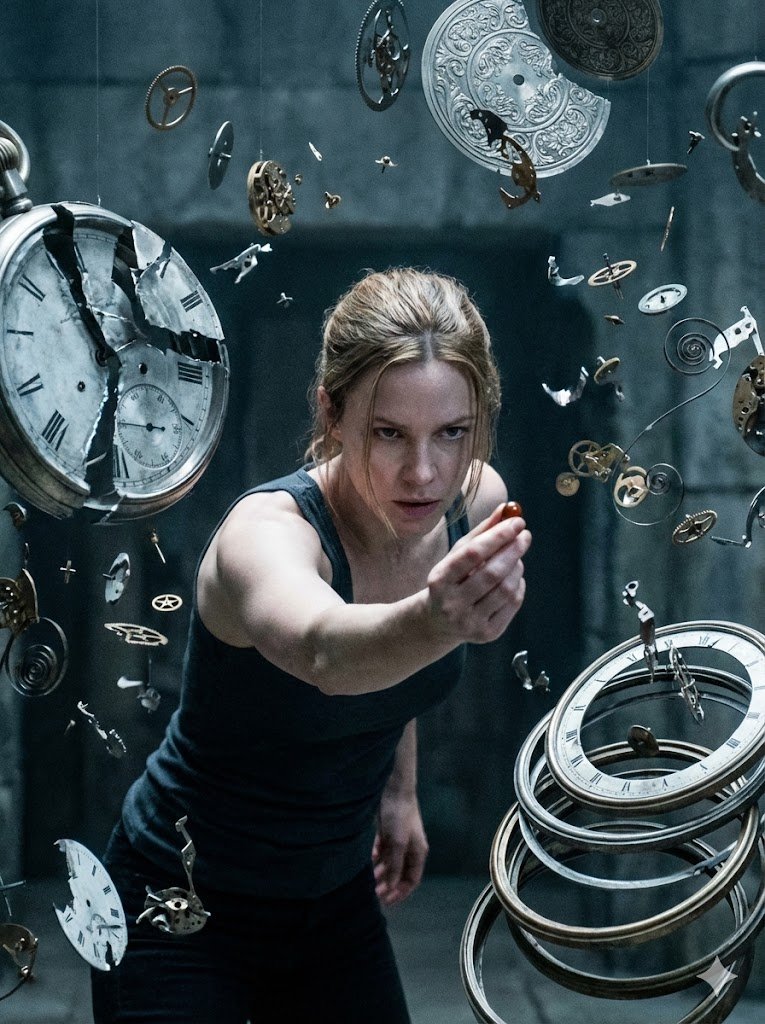
How to a cinematic, horizontally oriented image captures a dramatic moment with a female character surrounded by what appear to be fragments of metallic,...
0
Times used
0
Likes
Unleash the Blockbuster Director Within: Mastering the "Create a Cinematic 3" Style with Orno
Ever dream of capturing the high-stakes drama of a Hollywood blockbuster in a single, breathtaking image? Imagine a frame frozen in time: a determined hero, an explosive moment, and an atmosphere so thick with tension you can almost hear the soundtrack. With the power of AI image generation, this is no longer just a dream. Welcome to the definitive guide to one of the most compelling styles in the Orno AI image editor: "Create a cinematic 3".
This style is more than just a prompt; it's a gateway to crafting visually stunning narratives that rival professional concept art and movie stills. It's designed to produce a horizontally oriented, cinematic masterpiece capturing a dramatic moment with a powerful female character at its core, often surrounded by dynamic, shimmering fragments of metal or glass. In this deep dive, we’ll deconstruct the elements of this incredible style, show you how to master it using Orno, and inspire you to create your own epic scenes. Get ready to turn your imagination into a cinematic reality.
Deconstructing the Magic: What Makes the "Create a Cinematic 3" Style So Powerful?
To truly master this style, you must first understand its DNA. The "Create a cinematic 3" prompt is a carefully crafted recipe that tells the Orno AI to blend specific artistic and narrative ingredients. Let's break down the core components.
1. The Cinematic Framework: Aspect Ratio and Composition
The first thing you'll notice is the "horizontally oriented" nature of the images. This isn't an accident. This widescreen aspect ratio (like 16:9 or 2.35:1) immediately mimics the look of a movie screen. It provides a broad canvas for visual storytelling, allowing for more complex compositions, a sense of environment, and a focus on action that moves across the frame. Orno’s AI understands this instruction, creating images with a natural cinematic scope that feels grand and immersive.
2. The Dramatic Moment: Storytelling in a Single Frame
This style excels at capturing a single, pivotal moment—the climax of a scene. It’s not a static portrait; it's an image brimming with implied action and emotion. The character isn’t just posing; she is reacting, enduring, or triumphing. This is achieved through:
- Dynamic Posing: Characters are often in mid-motion—bracing for impact, unleashing a power, or caught in a moment of intense reflection.
- Expressive Emotion: The AI is prompted to render faces that convey determination, sorrow, awe, or fury, making the viewer instantly connect with the narrative.
- Environmental Clues: The background and surrounding elements hint at a larger story. Is she in a crumbling sci-fi corridor, an ethereal fantasy realm, or a gritty urban landscape?
3. The Compelling Protagonist: A Focus on the Female Character
At the heart of the "Create a cinematic 3" style is a strong female protagonist. This deliberate choice taps into a rich history of iconic heroines in cinema and fiction. By focusing on a female character, the style allows for the exploration of diverse themes—resilience, power, grace, and complexity. Within Orno, you have the creative freedom to define this character. Is she a battle-hardened warrior, a futuristic hacker, a powerful sorceress, or an ordinary person caught in an extraordinary event? The prompt provides the stage; you direct the star.
4. The "Metallic Fragments": Adding Texture, Motion, and Mystery
The description’s final, evocative element—"fragments of metallic"—is the stylistic flourish that sets these images apart. These floating shards can be interpreted in countless ways, each adding a unique layer to the story:
- Shattered Glass or Shrapnel: Suggests a recent explosion, a violent impact, or a breakthrough, adding a sense of immediate danger and chaos.
- Technological Debris: Chrome and metallic pieces can imply a sci-fi setting, a malfunctioning android, or a reality glitching and falling apart.
- Magical Crystals: Shimmering, glowing fragments can signify a spell being cast, a magical barrier shattering, or an ancient power being unleashed.
How to Master and Customize "Create a Cinematic 3" in Orno
The base prompt is your starting point for an incredible journey. The real power of Orno’s AI image editor lies in its flexibility. Here’s how you can take the "Create a cinematic 3" style and make it uniquely yours.
Step 1: Start with the Base Prompt
Begin your creation by simply using the style name. This will give you a foundational image that perfectly captures the intended mood. Observe how Orno interprets the core elements: the lighting, the character’s pose, and the dynamic fragments. This gives you a canvas to build upon.
Step 2: Customize Your Protagonist
Want to direct your own hero? Add descriptive keywords to modify the female character. Try adding details like:
- Appearance: "woman with long silver hair and glowing blue eyes," "warrior with intricate facial tattoos," "woman in a futuristic tactical suit."
- Emotion: "serene expression," "fierce battle cry," "tearful but determined."
- Action: "levitating in the air," "holding a glowing sword," "looking at a holographic display."
Step 3: Define the Environment and Fragments
Control the world around your character. Modify the background and the nature of the floating fragments to set the scene. For example:
- Setting: "in a neon-lit cyberpunk city street at night," "in a lush, enchanted forest," "inside a derelict spaceship hangar."
- Fragment Type: "surrounded by fragments of shattering stained glass," "floating shards of obsidian rock," "golden, ethereal light particles."
Step 4: Refine the Cinematic Details
To truly elevate your image to a professional level, add terms used in filmmaking and photography. This fine-tunes the AI's "camera" and "lighting department."
- Lighting: Use keywords like "dramatic chiaroscuro lighting," "soft rim lighting," "volumetric god rays," "anamorphic lens flare."
- Color Palette: Specify a color grade, such as "moody teal and orange color grading," "desaturated, gritty color palette," "vibrant, cinematic colors."
- Camera Shot: Define the angle and distance with terms like "low-angle shot," "extreme close-up on her eyes," "dynamic Dutch angle."
Why Orno is the Ultimate Tool for Cinematic AI Image Generation
While many AI tools can generate images, Orno is specifically engineered to give creators the control needed for high-quality, artistic output. The "Create a cinematic 3" style is a testament to this, leveraging Orno's advanced features:
- Superior Prompt Interpretation: Orno’s AI engine excels at understanding the nuance of creative and cinematic language, translating complex ideas into stunning visuals.
- High-Resolution Output: Create images that are crisp, detailed, and ready for use as wallpapers, prints, or professional concept art. No more blurry or artifact-filled results.
- Consistent Stylistic Cohesion: Our pre-built styles like "Create a cinematic 3" ensure you get a consistent, high-quality aesthetic every time, which you can then customize to your heart's content.
- User-Friendly Interface: You don't need to be a prompt engineering wizard to get started. Orno makes it easy to select a style, add your ideas, and generate a masterpiece in seconds.
Frequently Asked Questions (FAQ)
Here are answers to some common questions about this incredible AI art style.
What is the "Create a cinematic 3" style in Orno?
It is a specialized AI image generation style within the Orno editor designed to create dramatic, movie-like scenes. Its signature look features a horizontally oriented image of a female character in a pivotal moment, surrounded by dynamic metallic or glass-like fragments, all rendered with cinematic lighting and color.
Can I use this style to create male characters?
Absolutely! While the base style focuses on a female protagonist, you can easily modify it. Simply add keywords like "cinematic photo of a male warrior" or "a man with a determined expression" to your prompt while using the style, and Orno's AI will adapt the scene to your new character.
How can I make my AI-generated images look more cinematic?
Beyond using the "Create a cinematic 3" style, focus on keywords related to filmmaking. Include terms for lighting ("rim lighting," "volumetric"), camera work ("low-angle shot," "shallow depth of field"), and color ("teal and orange grading"). These professional terms will guide the AI to produce a more authentic cinematic feel.
What are the best keywords for creating dramatic AI art?
For drama, focus on emotion, action, and atmosphere. Use words like "epic," "dramatic," "intense," "emotional," "chaotic," "serene," "stormy," and "glowing." Combining these with a clear subject and setting in Orno will yield powerful results.
Is the Orno AI image editor difficult to use for beginners?
Not at all. Orno is designed for both beginners and experts. You can start by using powerful pre-made styles like "Create a cinematic 3" with one click. As you get more comfortable, you can begin adding your own keywords and modifiers to gain more precise control over your creations.
Your Movie Starts Now
The "Create a cinematic 3" style is more than a preset; it's a launchpad for your imagination. It empowers you to become the director, cinematographer, and storyteller of worlds yet to be seen. You have the tools to craft scenes of breathtaking action, quiet intensity, and profound emotion. The only limit is your creativity.
Stop dreaming and start creating. Open the Orno AI image editor, select the "Create a cinematic 3" style, and type in your first scene. Your blockbuster is waiting to be made.
Use This Prompt
Transform your images with AI
Save this prompt as its own icon for one-tap access.